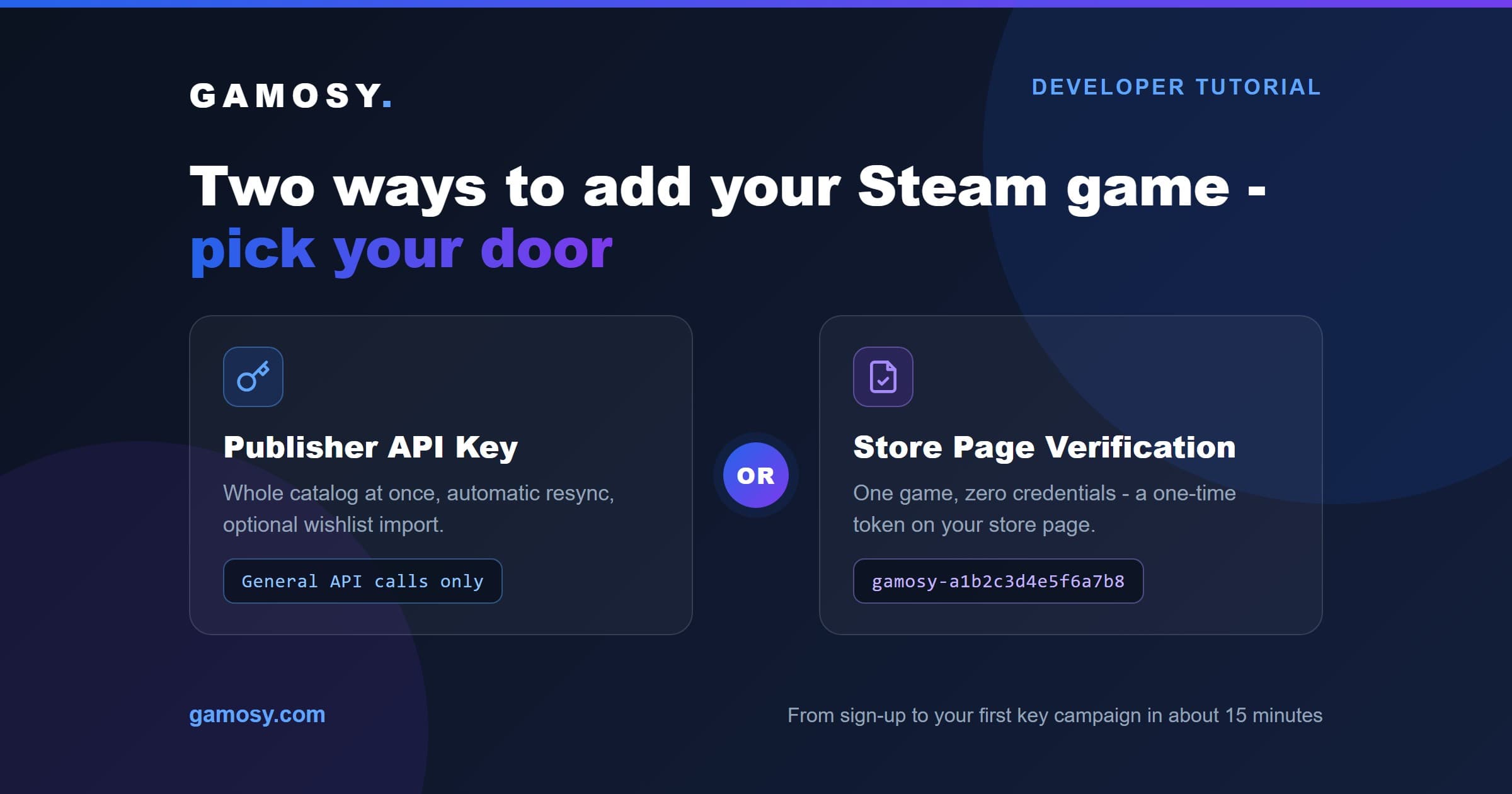
The work takes about 15 minutes from sign-up to your first key campaign - and you get to decide exactly how much of Steamworks you show us along the way.
Gamosy gives you two doors into the same room. Door one: paste a Publisher Web API Key and your whole catalog imports itself. Door two: prove you control your game's Steam store page with a one-time token, and add that game without sharing any key at all. Both doors lead to the full product - campaigns, encrypted key storage, creator applications, analytics. The key only adds catalog automation on top.
Why two doors? Because some studios will never paste an API key into a third-party tool, and that is a reasonable position. We built a path for that studio too. Either way, creating your account costs nothing: key distribution is free for every studio, and every new studio gets 60 days of Gamosy PRO free - no card required.
This tutorial walks through both paths click by click.
Before You Start: Sign Up and Pick Game Developer
Two things happen before any game shows up, and neither of them involves an API key:
- Create your account and pick Game Developer when Gamosy asks what brings you here. This creates your studio workspace.
- Open KeyVault → Developer → Games. This is the screen where both methods live side by side, with a comparison table between them.
Gamosy also offers a Steam login, and it is worth being clear about what it is not. It is not a prerequisite, it proves nothing about the games you make, and no game in your library depends on it. It is a standard Steam login - the same green button you have seen on a hundred community sites - and all it does is put your Steam display name and avatar on your public Gamosy page. It cannot touch your wallet, make purchases, or modify your account. Take it or leave it; both paths below work exactly the same either way.
That is the whole setup. The only decision left is which path fits your studio.
Which Path Is for You?
Both paths unlock the exact same product. Here is the honest difference:
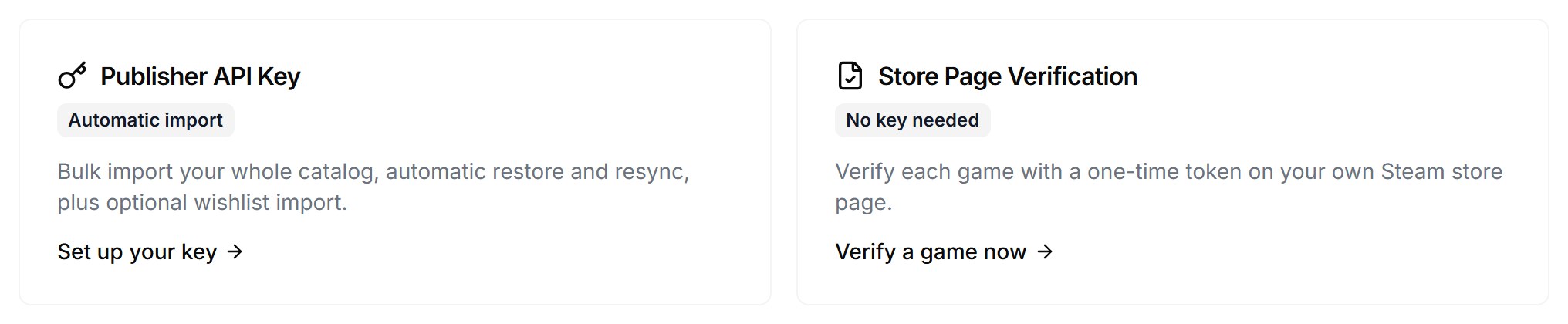
| Path A: Publisher API Key | Path B: Store Page Verification | |
|---|---|---|
| Campaigns, keys, analytics, every other feature | Included | Included |
| Adding games | Whole catalog at once | One game at a time |
| Restore and resync | Automatic | Manual |
| Wishlist import | Optional, with Sales Data permission | Not available |
The decision shortcut:
- One game, zero appetite for sharing credentials - take Path B. Five minutes, no key, done.
- A catalog of games, or you want automatic wishlist import - take Path A. The key stays scoped to exactly what you allow.
- Undecided - start with Path B today. You can add a key later, and the two combine without conflict.
Path A: Publisher API Key (Bulk Import)
Five minutes in Steamworks, one minute in Gamosy. The important part is that you control the blast radius: Steamworks lets you scope a key so tightly that handing it over reveals nothing beyond your app list.
Step 1: Create a Dedicated Group in Steamworks
You do not have to hand over broad access. In partner.steamgames.com, create a new group that contains only the games you want to use with Gamosy. A key generated for that group only sees the games inside it.
Step 2: Generate the Publisher Web API Key
The click path inside Steamworks:
- Sign in to partner.steamgames.com
- Go to Users & Permissions in the left sidebar
- Click Manage Group on your dedicated group
- Scroll to the Publisher Web API Key section and generate the key
- Copy it
Step 3: Grant General API Calls Only
In your group's permission settings, grant General API calls and nothing else - that is all game import needs. The single exception: add the Sales Data permission only if you plan to turn on automatic wishlist import later. Gamosy does not need anything beyond those two, so do not grant anything beyond those two.
Step 4: Paste, Verify, Watch Your Games Appear
Back in Gamosy, open KeyVault → Developer → Games, paste the key into the Publisher API Key field, and click Verify.
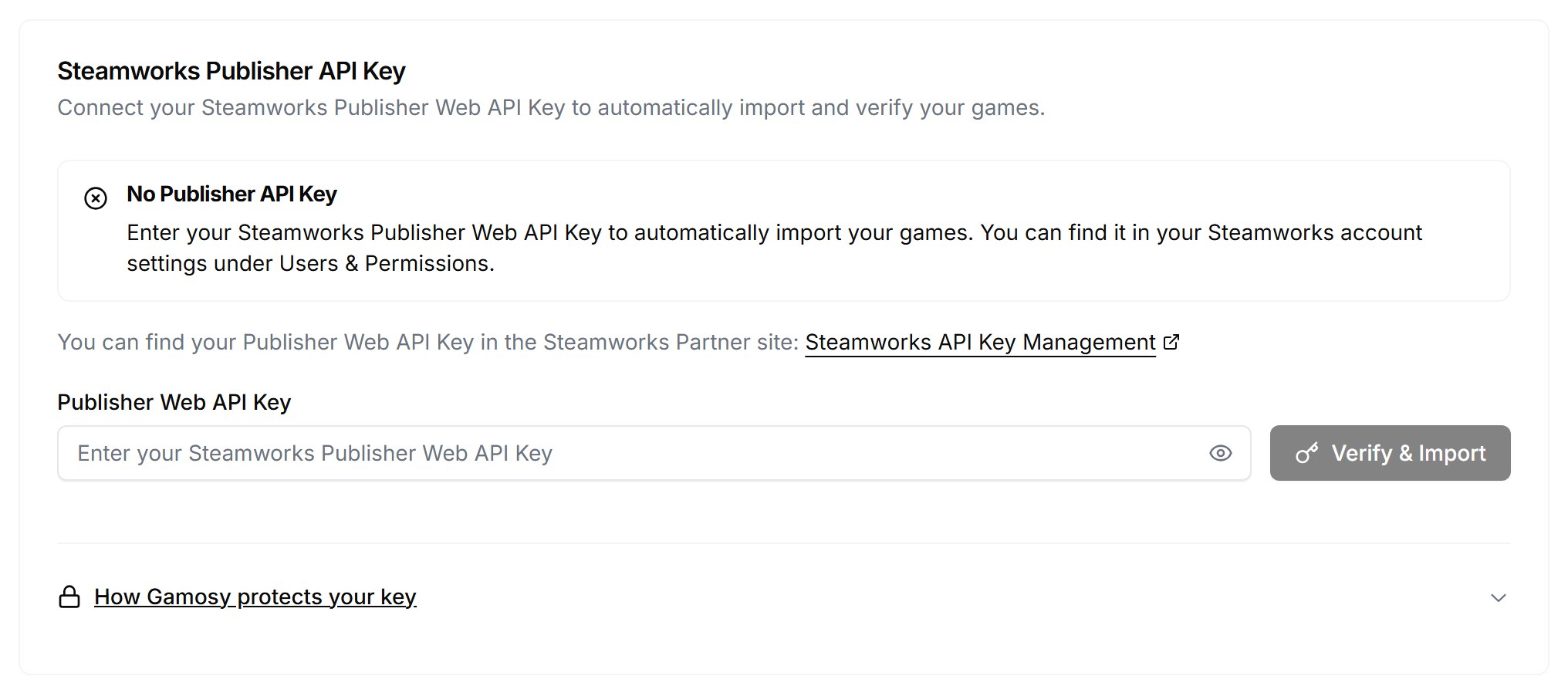
Gamosy pulls your app list, imports titles and AppIDs, and then enriches every game from the public store API: screenshots, trailers, pricing, review scores. From here your catalog stays in sync automatically - new releases sync in, and a restored game comes back on its own. The full reference lives in the Connecting Steam docs.
How Your Key Is Protected
We treat your key the way we tell you to treat your keys - and we wrote a whole post about how carelessly stored keys end up on G2A, so the bar is not theoretical:
- Encrypted at rest with an isolated vault key, separate from application data
- Unreadable by the application database role - column-level grants mean even a compromised app query cannot select it
- Server-side only - the key is decrypted exclusively inside sync jobs and never reaches a browser
- Removable any time - deleting the key keeps your games, campaigns, and history intact
Path B: Store Page Verification (No Key, One Game)
The logic is simple: only someone with Steamworks edit access can change a game's store page. So Gamosy asks you to place a short token there, then reads the public page to confirm it. No key, no login, no access to your Steamworks account at any point.
Step 1: Enter Your AppID or Store Page URL
On KeyVault → Developer → Games, choose store page verification and paste either your game's Steam AppID or its full store page URL - the wizard accepts both.
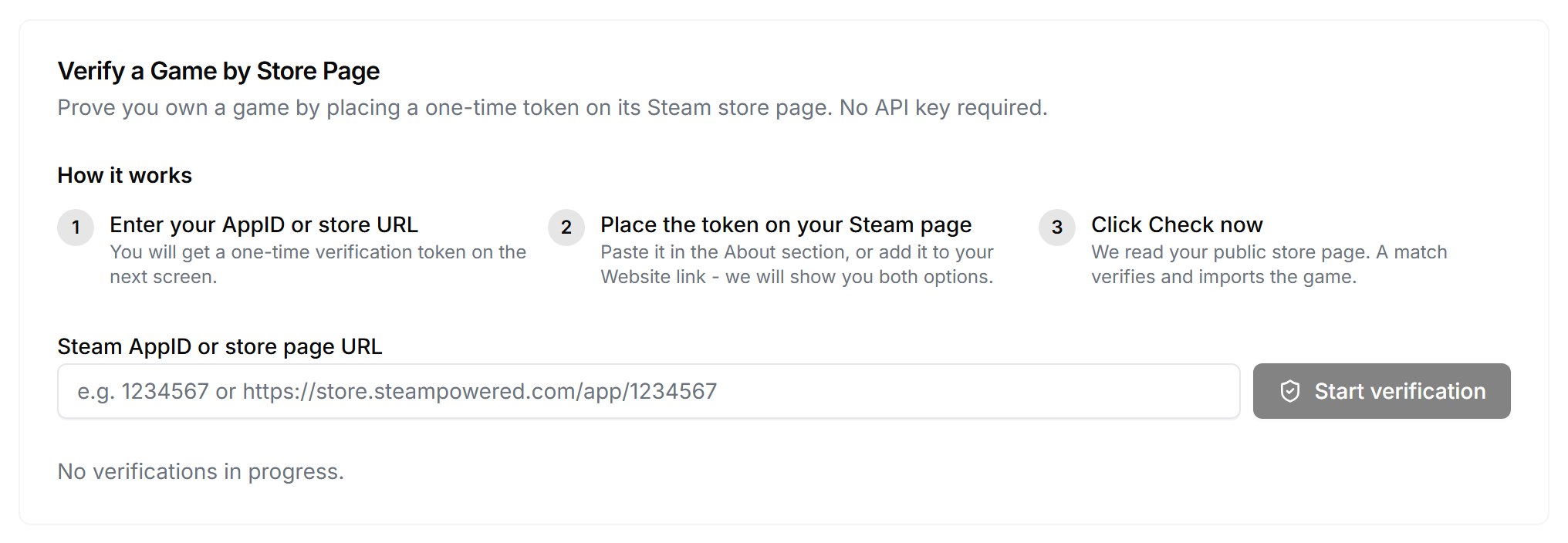
Step 2: Copy Your Proof Token
On the next screen Gamosy generates your proof token: gamosy- followed by 16 characters.
Step 3: Place the Token on Your Store Page
Two placements work, and the wizard shows both:
- About section: paste the token as plain text anywhere in the About This Game section of your store page
- Website link: append
?gamosy=TOKENto the Website address on your store page
Step 3b: No Website? Use Your gmsy.me Page
Plenty of small studios have no website to put in that field - and this is where it gets convenient. If your studio has a published Gamosy bio page, the wizard shows a ready-made address like https://gmsy.me/your-studio?gamosy=TOKEN. Copy it, set it as the Website on your store page, done.
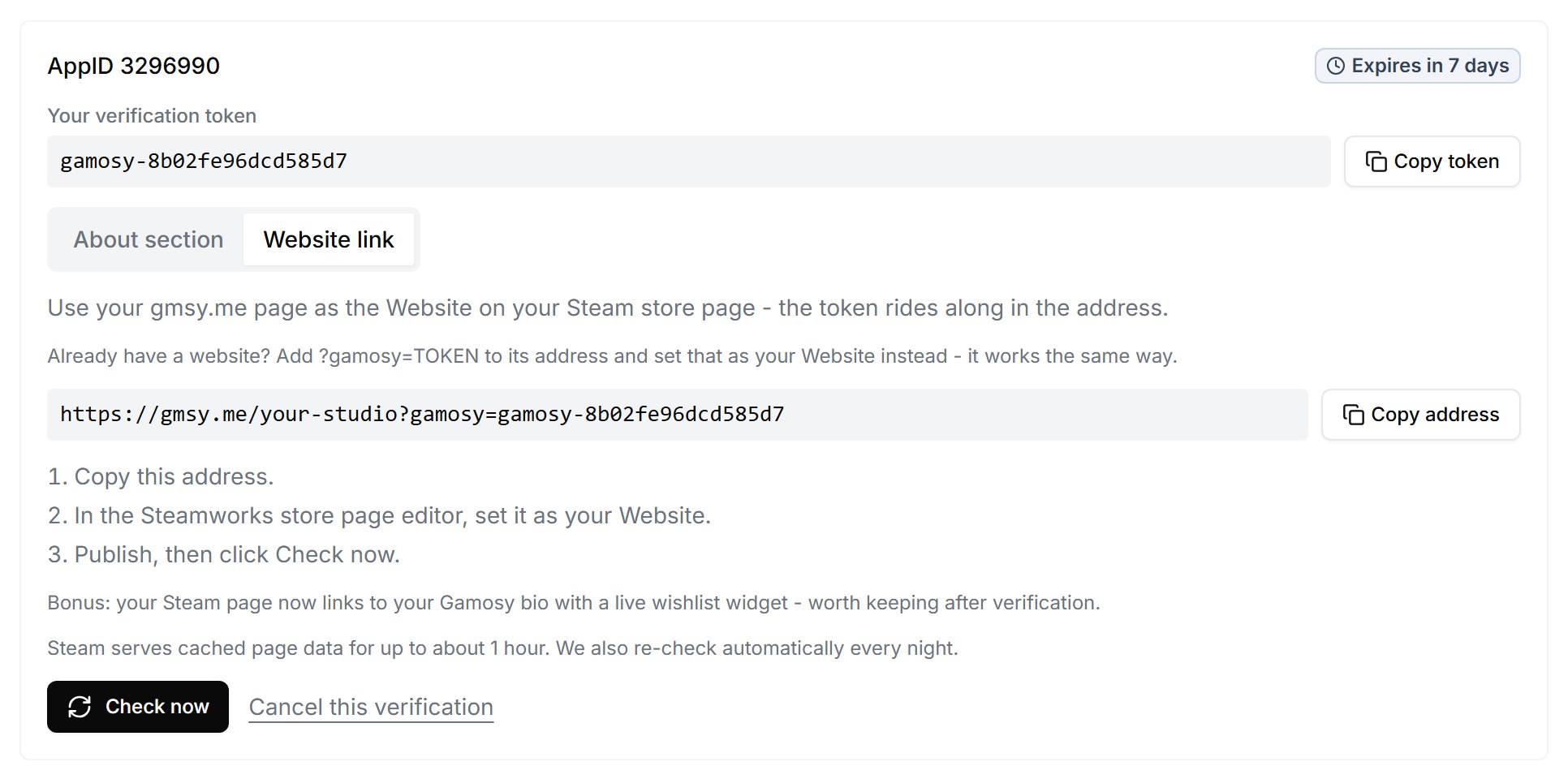
Bonus move: keep the gmsy.me address as your Website after verification. Your Steam page then links to a bio page with your socials and a live Steam wishlist widget - a far better landing spot than an empty field. No bio page yet? You can create one for free from the Link in Bio section of your dashboard.
Step 4: Publish and Click Check now
Publish the store page edit in Steamworks - edits to a live store page publish right away - then return to Gamosy and click Check now. Once the token is found, the game is verified and lands in your library with full store data. The complete walkthrough, including every edge case, is in the Verify Game Ownership docs.
Timing and Troubleshooting
The section you will come back to if the first check does not pass:
- Steam caches store pages. Your published edit can take up to about 1 hour to appear in the data Steam serves. A failed first check is usually a loading screen, not an error screen - wait a bit and try again.
- Gamosy re-checks nightly. No button-mashing required. Pending verifications are re-checked automatically every night.
- Tokens are valid for 7 days. If a claim expires before you get around to publishing, just start again - a fresh token takes seconds.
- You can remove the token after verification. It is a one-time proof. Once the game shows verified, edit your page and delete it.
- AppID already claimed? Each Steam app belongs to one Gamosy team. If someone claimed yours and you believe that claim is not legitimate, contact support and we will resolve the dispute.
You Are Verified. Now What?
Your game is in the library - now the actual point of all this. Upload your Steam keys into encrypted storage, create your first campaign, and verified creators start applying with OAuth-checked channel stats - real numbers from YouTube, Twitch, and TikTok, not screenshots. The full tour of that machine is in KeyVault explained, and the feature page is at Steam key distribution.
The cost recap, since this is the part everyone scrolls for: key campaigns are free at any scale. Gamosy PRO at $49 per month per game adds the licensed-game extras like Steam and Twitch sources in Media Monitoring, and every new studio starts with 60 days of PRO free - no card required. If you are still comparing platforms before committing, our honest rundown of Keymailer alternatives in 2026 names the cases where a competitor is the better pick.
Ready when you are: create your free account and load your catalog.
TL;DR
- Two paths, same product: a Publisher Web API Key imports your whole catalog with automatic resync; a store page token adds one game with zero credentials shared.
- The key needs General API calls only, on a dedicated Steamworks group - add Sales Data only for optional wishlist import.
- The token goes in your About This Game section or as
?gamosy=TOKENon your Website link - and if you have no website, your gmsy.me bio URL does the job. - Steam caches pages for about 1 hour, Gamosy re-checks nightly, tokens last 7 days.
- Key distribution is free for every studio, and new studios get 60 days of Gamosy PRO free - no card required.
GG. Your catalog is loaded - go press start on a campaign.
More reading: KeyVault explained | Keymailer alternatives in 2026 | How stolen keys end up on G2A
Frequently Asked Questions
Do I need a Steamworks API key to add my game to Gamosy?
No. Store page verification adds a single game with a one-time proof token placed on your Steam store page - no key, no Steamworks access, nothing shared. The Publisher Web API Key is only for studios that want bulk catalog import and automatic resync.
What permissions does the Publisher Web API Key need?
General API calls only, ideally generated for a dedicated Steamworks group that contains just the games you use with Gamosy. Add the Sales Data permission only if you want automatic wishlist import. Nothing else is needed, so nothing else should be granted.
How long does store page verification take?
The work itself takes about five minutes. Steam's store page cache can delay the check by up to an hour, Gamosy re-checks pending verifications every night, and each token stays valid for 7 days - so even a slow path gets there without babysitting.
Can I remove the gamosy token after verification?
Yes. The token is a one-time proof, not a permanent marker. Once your game shows as verified, edit your store page and delete it - the verification stays.
Does Gamosy get access to my Steamworks account?
On the token path: none at all - Gamosy only reads your public store page. On the key path: the key is scoped to the group you created, used for one endpoint (your app list) unless you opt in to wishlist import, encrypted at rest, and removable any time without losing your games or campaigns.
How much does it cost to add games and distribute keys?
Adding games and running key campaigns are free for every studio, at any scale, and creators never pay anything. Gamosy PRO at $49 per month per game adds licensed-game features, and every new studio gets 60 days of PRO free - no card required. Create your free account to start the clock.